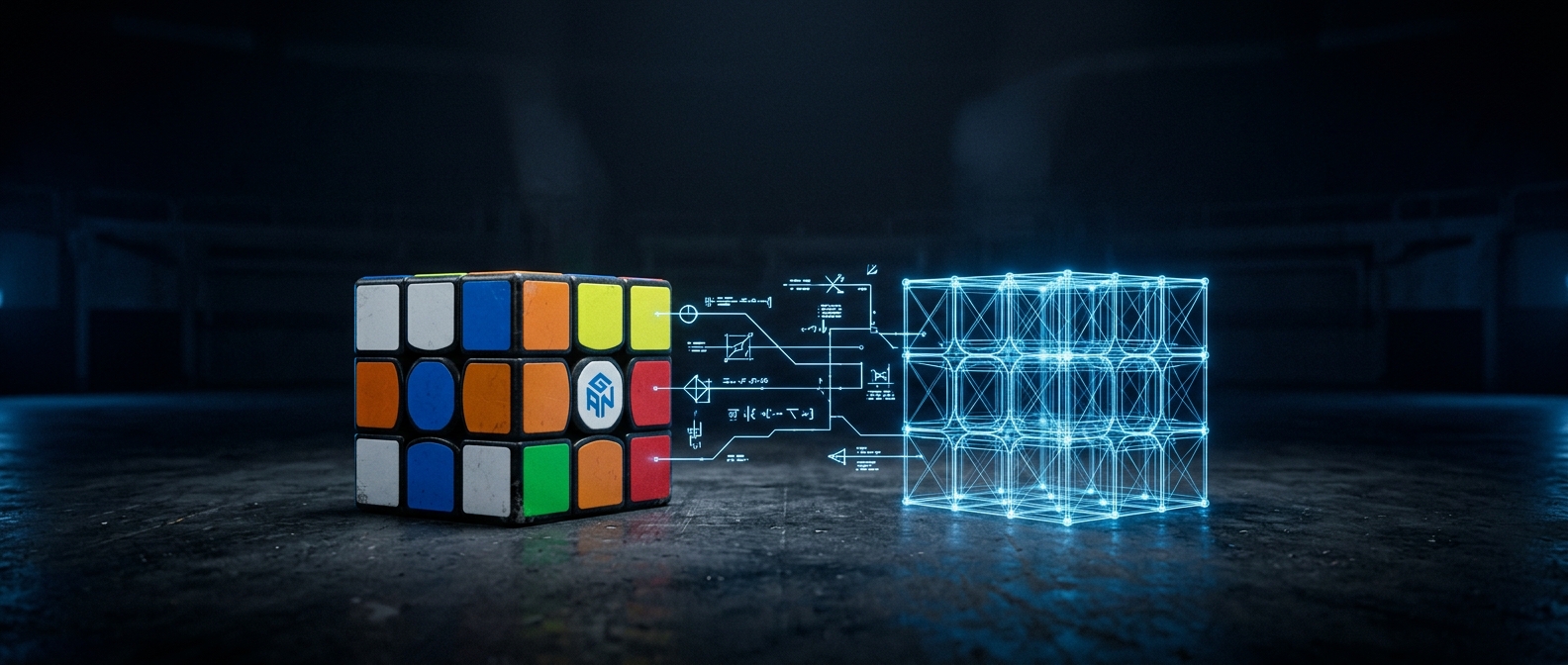
Orientation, holding frame and gyro
Scrambles and solutions only make sense relative to how you’re holding the cube, so cubrs tracks a holding frame and shows every move letter in it, while keeping its own state in the cube’s native frame underneath. Getting the on-screen cube to match the one in your hands is what this page is about.
Orientation presets
On the Reset screen a preset select offers the two common grips: White up · Green front
(the default) and Yellow up · Green front. Pick the one that matches how you hold the
cube and every scramble and solution token is remapped to it — under yellow-up, for instance,
a turn of the white face shows as D. The token colour always tracks the physical
face, so it stays white and tells you exactly which face to grab regardless of the letter.
Drag and Lock to my view
For any grip that isn’t a preset, drag the 3D cube. It’s a trackball — it spins freely on every axis with no limit — and a double-click resets just the manual drag. Hold your real cube still, drag the virtual one until the two line up, then press Lock to my view. That snaps the on-screen cube to the nearest of the 24 axis-aligned orientations and adopts it as your holding frame (the select then reads “Custom (locked)”). ↺ View returns to the saved orientation. Your chosen frame is remembered between sessions.
What the gyro adds
Gyro-equipped cubes stream their physical rotation, and cubrs detects it automatically — the first reading turns it on, and from then on turning the whole cube in your hands rotates the cube on screen too, on both the Timer and Reset views. Only some cubes have a gyro at all: the GAN12 ui M family, GoCube-family cubes, and MoYu gyroscope-core models. Every other cube is matched by hand with drag and Lock to my view instead.
Re-aligning with ⌖
Once the gyro is streaming a ⌖ re-align button appears. Press it whenever the virtual cube has drifted out of sync with your hands: it re-anchors your current physical pose to the locked view and clears any manual drag, so what’s on screen matches what you’re holding right now. Choosing a preset while the gyro streams re-anchors the same way.
The calibration wizard (⌾)
Different brands report rotation in different sensor frames — axes swapped, signs flipped, some mirror-handed — so instead of guessing per brand, the ⌾ Calibrate button (shown while a gyro streams) runs a short guided procedure that measures the correct mapping in three steps:
- Align — hold the physical cube to match the screen (the top and front colours are named for your holding frame) and hold still; a stillness detector captures the reference automatically. Setting the cube down works too.
- Three prescribed quarter turns — Spin left, Tilt toward you, Roll left, each from a fresh re-align. The virtual cube loops an animation of each motion so the direction is unambiguous; anything that isn’t a clean single-axis quarter turn just retries the step.
- Verify — the derived mapping is applied live. Rotate the cube freely, confirm the virtual one follows exactly, and Save (or Retry from scratch).
Saved calibrations are keyed to the cube’s Bluetooth name and re-applied automatically when you reconnect. GAN cubes need no calibration — their sensor frame already matches cubrs, so running the wizard on one simply derives the identity mapping.
Mirrored turns are viewing geometry, not tracking
If a turn looks mirrored on screen for a moment, that’s the viewing geometry of your current orientation, not a tracking error — the cube’s state is still read correctly underneath. Re-aligning with ⌖ or locking to your view lines the picture back up.